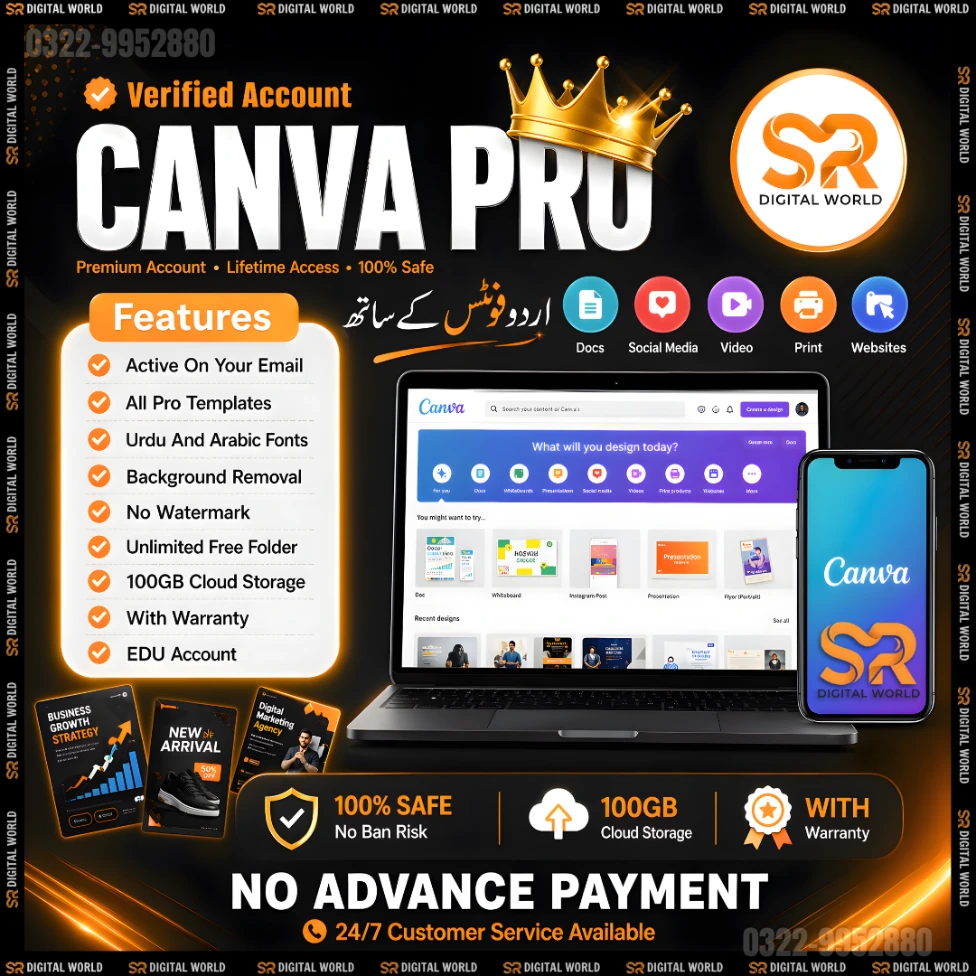
🎨 Canva Pro — Edu Plan | Your Own Account | Photo AI Included
Get Canva Pro activated directly on your personal Canva account — no shared workspaces, no team rejoining every month. Just your account, fully upgraded. SR Digital World delivers clear activation instructions within minutes of purchase.
━━━━━━━━━━━━━━━━━━━━━━━
🔥 What's Included:
✅ All Pro Templates & Assets — 100M+ premium templates, elements, fonts & stock photos
✅ Photo AI Tools — Magic Edit, Background Remover, AI Image Generation & more
✅ Brand Kit — save your fonts, colors & logos for consistent branding
✅ Fully Private Projects — no one can view or access your designs, ever
✅ Magic Resize — instantly resize any design to any format (social, print, presentation)
✅ Works on All Devices — Windows, Mac, Linux, iOS & Android
✅ Your Own Account — Pro added directly to your personal Canva, no shared team
✅ No Monthly Rejoining — one payment, access stays active for your full plan duration
✅ Fast Activation — follow simple steps and go live within minutes
⚠️ Note: Video AI is NOT included. All Photo AI tools are fully available.
━━━━━━━━━━━━━━━━━━━━━━━
📦 Plans & Pricing:
- 1 Month — Rs. 150 | ≈ $0.54 USD | Great for a single project or short-term use
- 3 Months — Rs. 200 | ≈ $1.00 USD | Save Rs. 250 vs monthly ⭐ Most Popular
- 6 Months — Rs. 300 | ≈ $1.50 USD | Save Rs. 600 vs monthly | Best value for daily designers
━━━━━━━━━━━━━━━━━━━━━━━
📲 How It Works — 3 Simple Steps:
1️⃣ Choose your plan and complete payment
2️⃣ Send us the email address linked to your Canva account on WhatsApp
3️⃣ Receive step-by-step activation instructions — Pro features live within minutes!
━━━━━━━━━━━━━━━━━━━━━━━
ℹ️ What is Canva Edu Pro?
This is a Canva Education account that unlocks all standard Canva Pro features at a fraction of the retail price. Your personal account gets Pro features added directly — you never join a shared workspace, no one can see your projects, and it works exactly like regular Canva Pro from your side.
━━━━━━━━━━━━━━━━━━━━━━━
100% Secure | Instant Activation | 24/7 WhatsApp Support
Frequently Asked Questions
Hamari taraf se aapki Gmail par ek invite email bheja jata hai. Us email ko open karein aur "Join Team" button par click karein. Canva ka page khulega — wohi Gmail account se login karein jis par invite aaya tha. Login hote hi aapka Canva Pro automatically activate ho jayega.An invite email will be sent to your Gmail from our side. Open that email and click the "Join Team" button. The Canva page will open — simply log in with the exact same Gmail account. Your Canva Pro will activate automatically upon login.
Watch Tutorial
Apne phone par Gmail app kholen aur Canva ka invite email dhundhein. "Join Team" button tap karein — yeh aapko Canva app ya browser par le jayega. Same Gmail account se login karein. Behtar experience ke liye pehle Canva app install kar lein, phir invite link tap karein.Open the Gmail app on your phone and locate the Canva invite email. Tap the "Join Team" button — this will redirect you to the Canva app or browser. Log in with the same Gmail account. For the best experience, install the Canva app first before tapping the invite link.
Watch Tutorial
Canva mein koi bhi template open karein. Upar right corner mein "Share" button par click karein, phir "Template link" option chunein. Link copy ho jayega — ise aap kisi ko bhi bhej saktay hain. Jab wo link kholenga to woh template apne Canva account mein seedha use kar sakta hai bina kuch download kiye.Open any template in Canva. Click the "Share" button in the top right corner, then select the "Template link" option. The link will be copied — you can send it to anyone. When they open that link, they can use the template directly in their Canva account without downloading anything.
Watch Tutorial
Woh design open karein jo transfer karna hai. Upar right corner mein teen dots (⋯) par click karein aur "Move to team" option chunein. List mein se doosri team select karein aur Move confirm karein — design transfer ho jayega. Agar option nazar na aaye to design duplicate karke doosri team ke folder mein save karein.Open the design you wish to transfer. Click the three dots (⋯) in the top right corner and select "Move to team". Select the destination team from the list and confirm — the design will be transferred. If the option isn't visible, duplicate the design and save it into the other team's folder.
Watch Tutorial
Canva mein text box add karein, phir upar font search bar mein "Urdu" ya font ka naam jaise "Noto Nastaliq Urdu" likhen — yeh Canva ka best Urdu font hai. Font select karne ke baad text box mein Urdu type karein. Behtar result ke liye text alignment Right par set karein aur agar available ho to RTL (Right to Left) option enable karein.Add a text box in Canva, then go to the font search bar at the top and type "Urdu" or a font name like "Noto Nastaliq Urdu" — this is the best Urdu font on Canva. After selecting it, type your Urdu text. For perfect formatting, set the text alignment to Right and enable the RTL (Right to Left) option if available.
Watch Tutorial
Frequently Asked Questions
Hamari taraf se aapki Gmail par ek invite email bheja jata hai. Us email ko open karein aur "Join Team" button par click karein. Canva ka page khulega — wohi Gmail account se login karein jis par invite aaya tha. Login hote hi aapka Canva Pro automatically activate ho jayega.An invite email will be sent to your Gmail from our side. Open that email and click the "Join Team" button. The Canva page will open — simply log in with the exact same Gmail account. Your Canva Pro will activate automatically upon login.
Watch Tutorial
Apne phone par Gmail app kholen aur Canva ka invite email dhundhein. "Join Team" button tap karein — yeh aapko Canva app ya browser par le jayega. Same Gmail account se login karein. Behtar experience ke liye pehle Canva app install kar lein, phir invite link tap karein.Open the Gmail app on your phone and locate the Canva invite email. Tap the "Join Team" button — this will redirect you to the Canva app or browser. Log in with the same Gmail account. For the best experience, install the Canva app first before tapping the invite link.
Watch Tutorial
Canva mein koi bhi template open karein. Upar right corner mein "Share" button par click karein, phir "Template link" option chunein. Link copy ho jayega — ise aap kisi ko bhi bhej saktay hain. Jab wo link kholenga to woh template apne Canva account mein seedha use kar sakta hai bina kuch download kiye.Open any template in Canva. Click the "Share" button in the top right corner, then select the "Template link" option. The link will be copied — you can send it to anyone. When they open that link, they can use the template directly in their Canva account without downloading anything.
Watch Tutorial
Woh design open karein jo transfer karna hai. Upar right corner mein teen dots (⋯) par click karein aur "Move to team" option chunein. List mein se doosri team select karein aur Move confirm karein — design transfer ho jayega. Agar option nazar na aaye to design duplicate karke doosri team ke folder mein save karein.Open the design you wish to transfer. Click the three dots (⋯) in the top right corner and select "Move to team". Select the destination team from the list and confirm — the design will be transferred. If the option isn't visible, duplicate the design and save it into the other team's folder.
Watch Tutorial
Canva mein text box add karein, phir upar font search bar mein "Urdu" ya font ka naam jaise "Noto Nastaliq Urdu" likhen — yeh Canva ka best Urdu font hai. Font select karne ke baad text box mein Urdu type karein. Behtar result ke liye text alignment Right par set karein aur agar available ho to RTL (Right to Left) option enable karein.Add a text box in Canva, then go to the font search bar at the top and type "Urdu" or a font name like "Noto Nastaliq Urdu" — this is the best Urdu font on Canva. After selecting it, type your Urdu text. For perfect formatting, set the text alignment to Right and enable the RTL (Right to Left) option if available.
Watch Tutorial